

01
Define Your Image Purpose and Composition
Start by describing the scene, subject, and style you want. Specify composition details like framing, lighting, and color palette. This sets the foundation for your image.
Use reference images and text to create and edit images with Seedream Image.
Prompt Examples
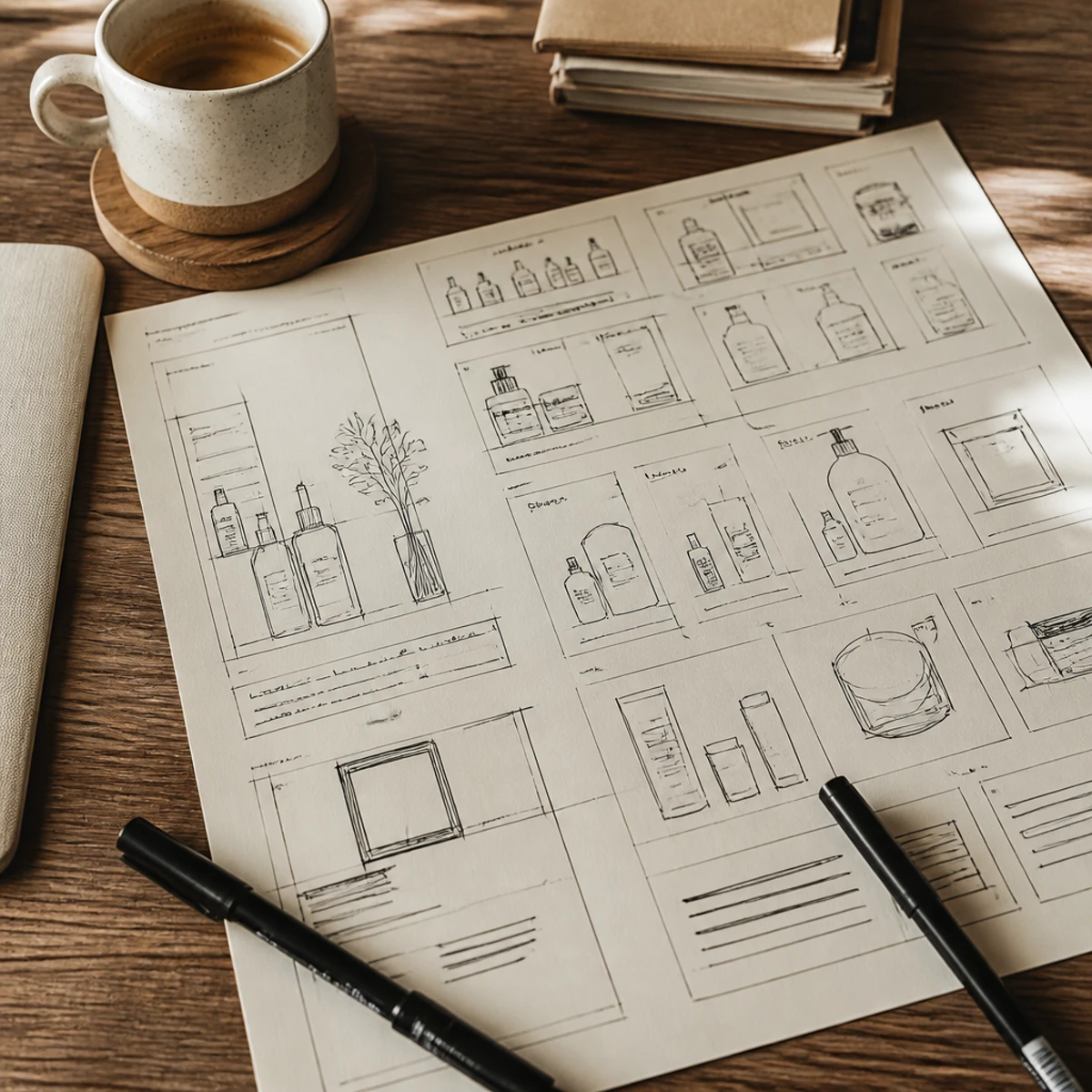
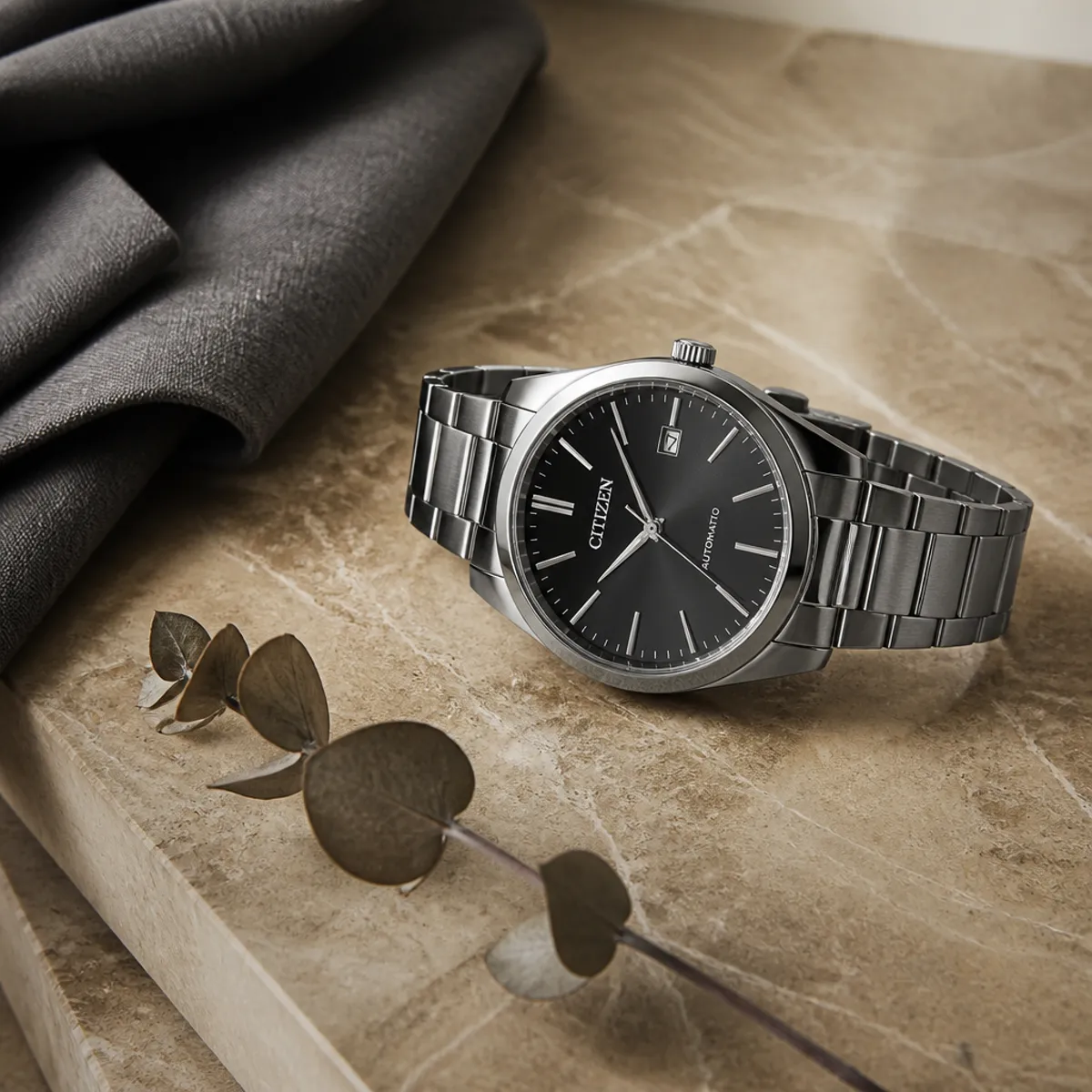
Use these concept illustrations to plan a product image, conference graphic, portrait, or billboard scene. They are visual planning references, not verified outputs from a Seedream model.
Image workflow
Generate and refine still images with reference-guided editing. Choose from Seedream 5.0, 4.5, or 4.0. No video, no camera movement, no per-second costs.
01
Start by describing the scene, subject, and style you want. Specify composition details like framing, lighting, and color palette. This sets the foundation for your image.

02
Choose a clear reference and describe its desired role in the prompt. No separate reference-role selector exists. Check supported count for your selected model.
03
Review the selected image model, aspect ratio, resolution, and displayed credit cost. Check your balance, then submit the image request.

04
Review the final image for lettering, edges, composition, and requested edits. Use an external editor to fix any remaining issues before saving or sharing.
Technology
Text guides describe the scene or change you want, while reference pixels provide visual cues. Detail drift may occur as the model interprets your input.
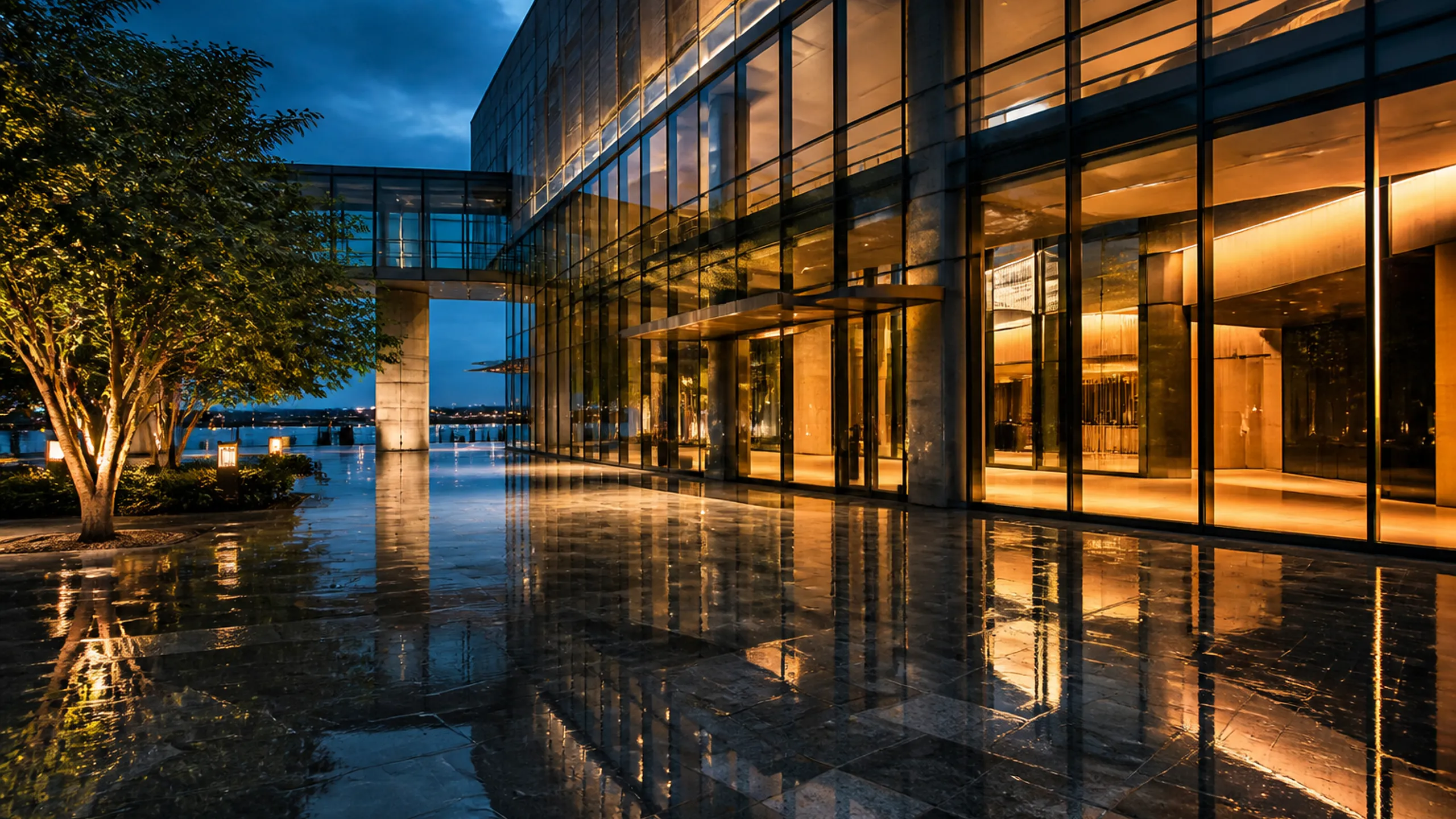
Your text prompt sets the scene, subject, and style. Seedream Image reads your words to guide the image generation.

Use a reference to guide pose, composition, color, or lighting. The selected model determines which image inputs it accepts. Compare the result with the reference to identify details that changed.
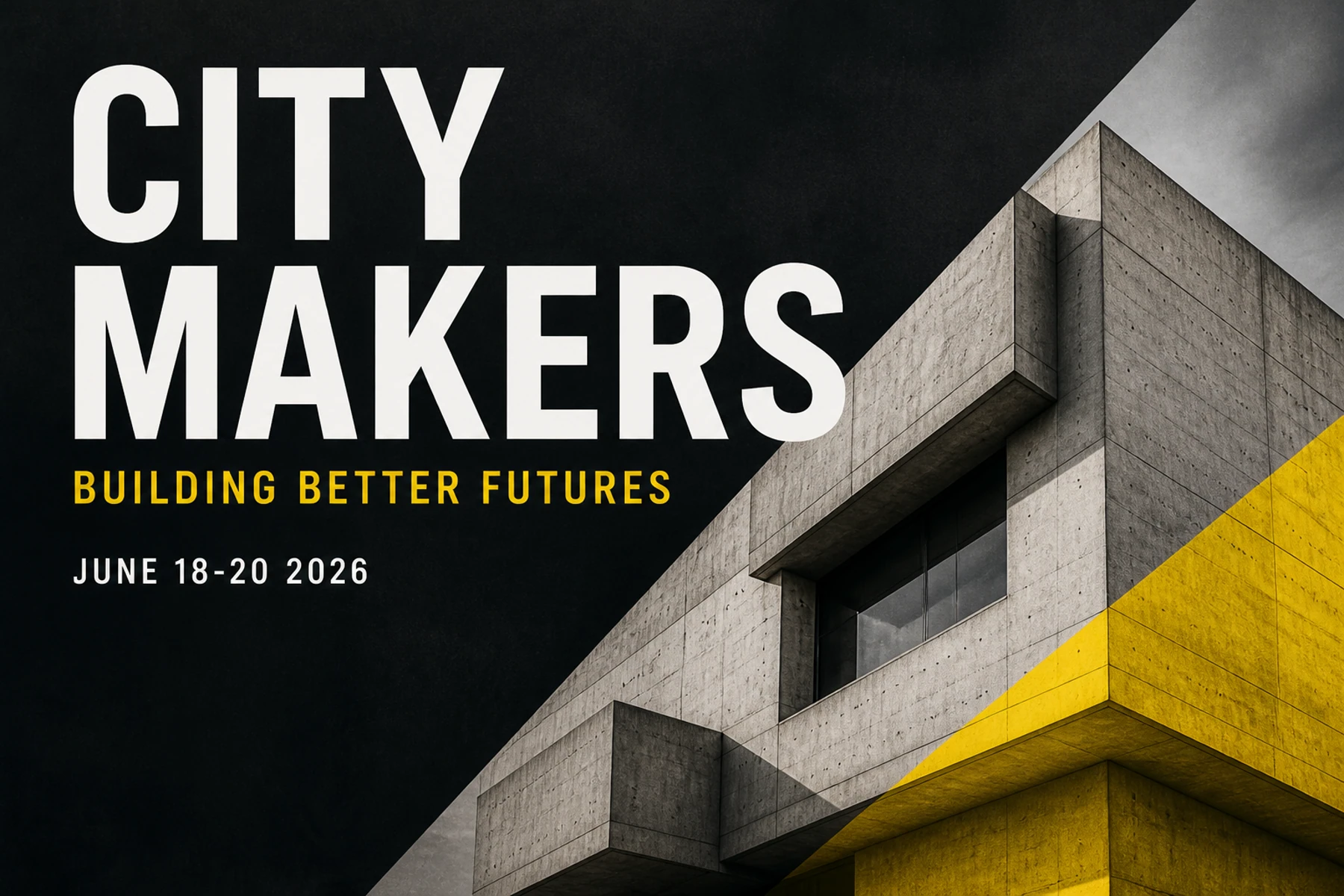
Seedream Image merges your text intent with reference visuals. The result is a new image that follows your description while echoing the references.
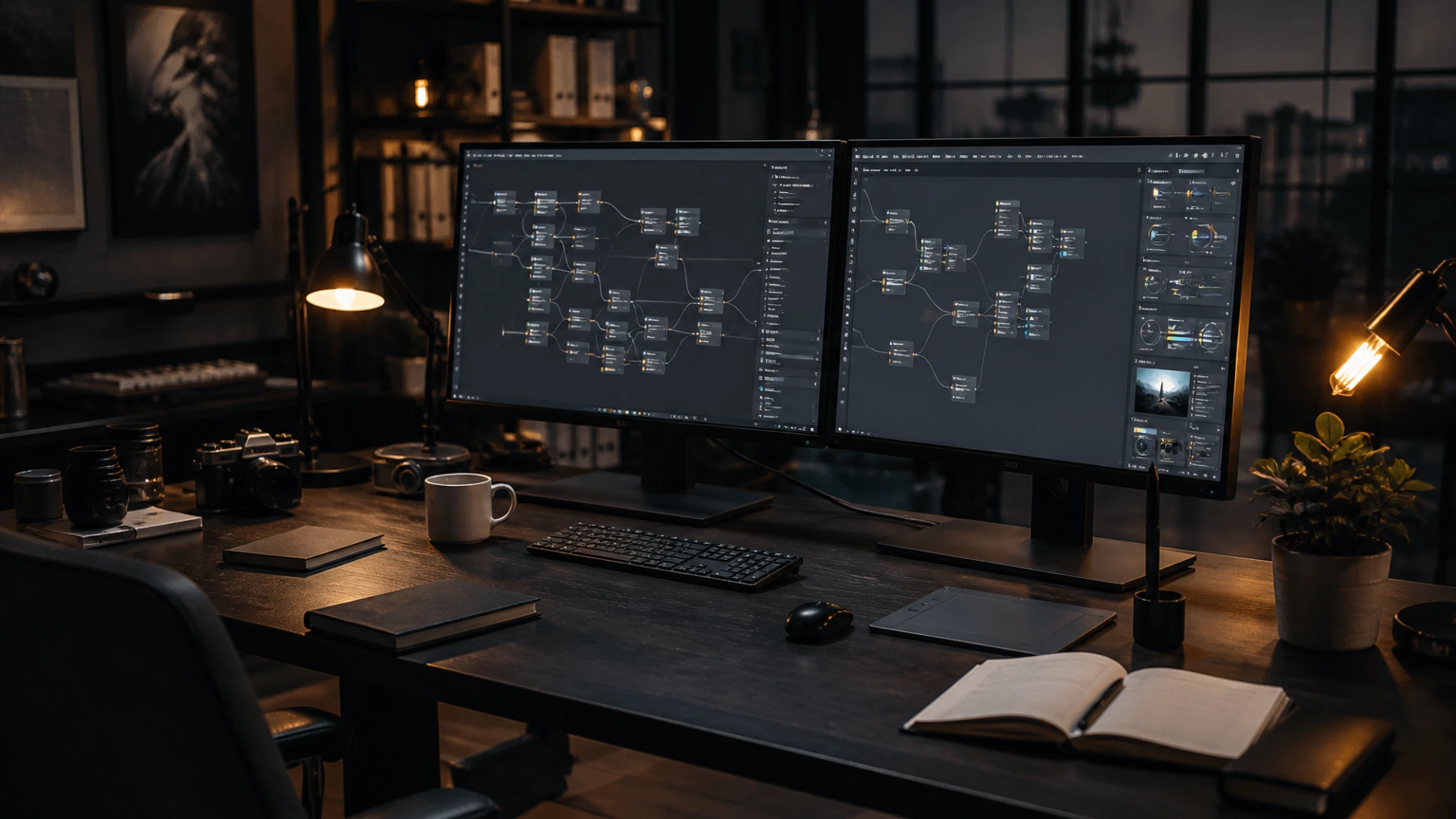
Imperfect preservation is normal. After each result, inspect faces, labels, edges, and fine patterns. References guide output, not exact replication.
Real-world uses for Seedream Image
Explore four distinct use cases for still image generation and reference editing. Each has a unique goal and review criteria.
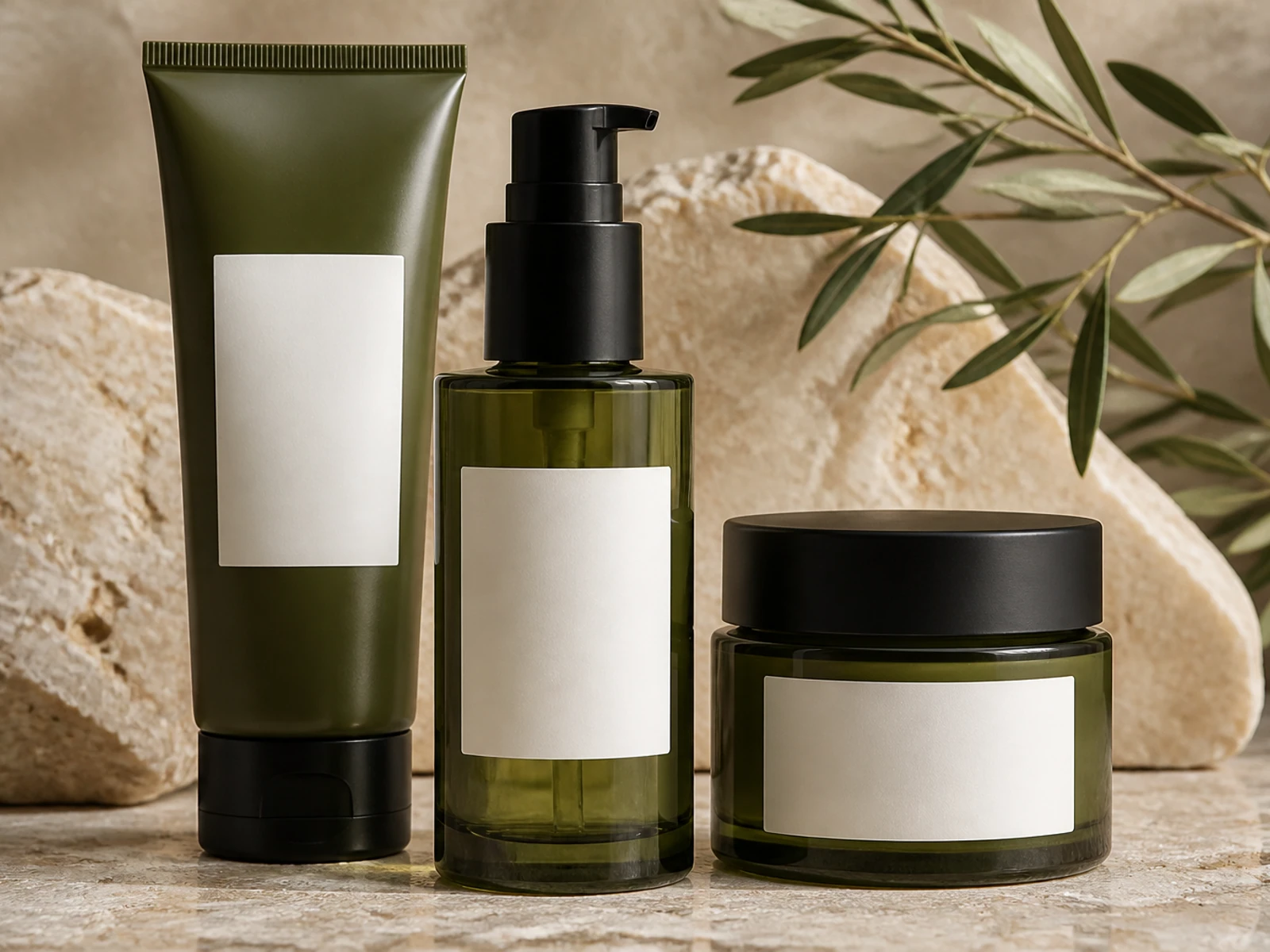
Generate product images for e-commerce listings. Use reference images to set style and composition. Review for clarity, lighting, and product accuracy.
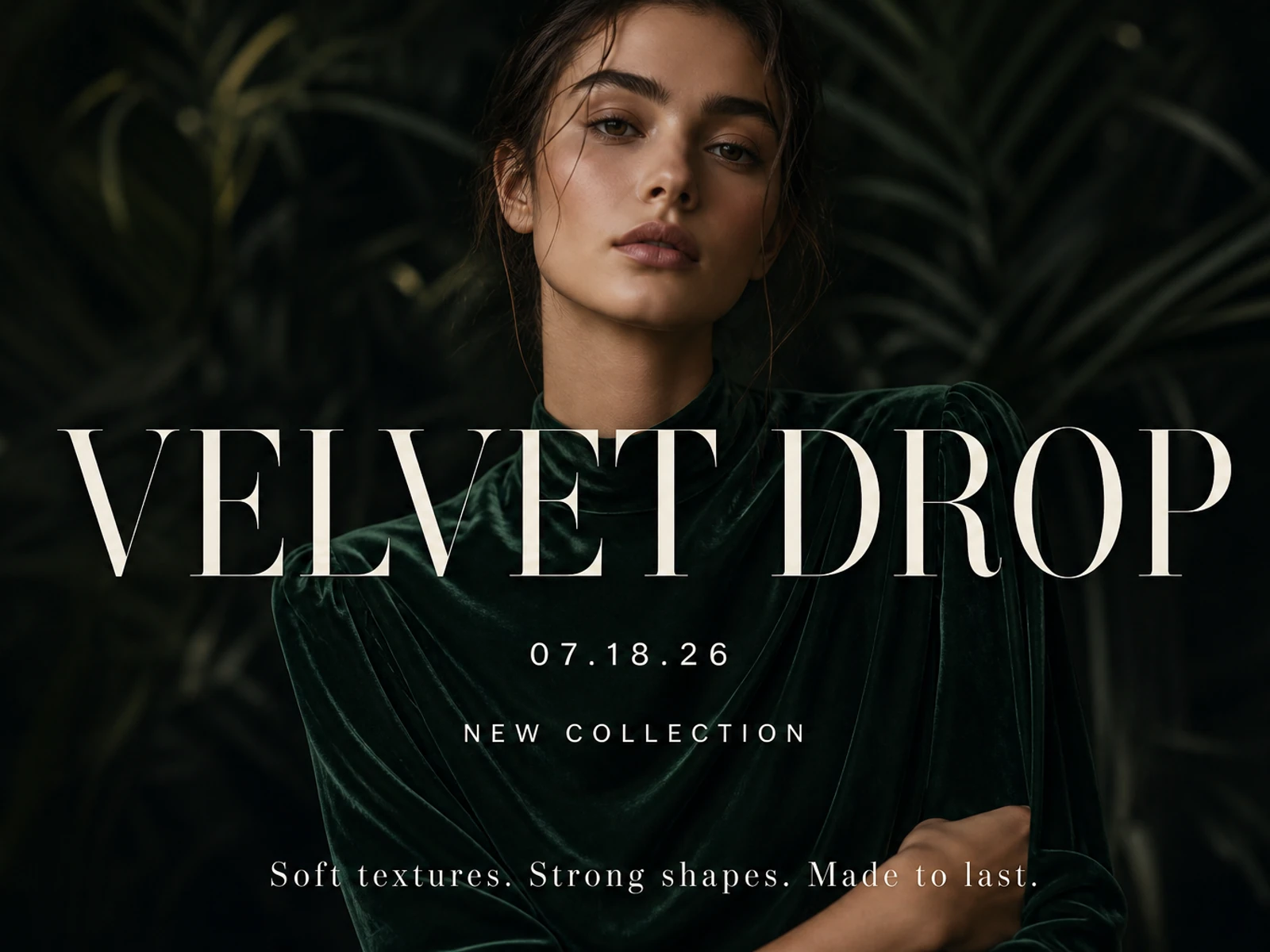
Create promotional graphics for campaigns or events. Combine text prompts with reference images. Review for brand alignment and visual impact.
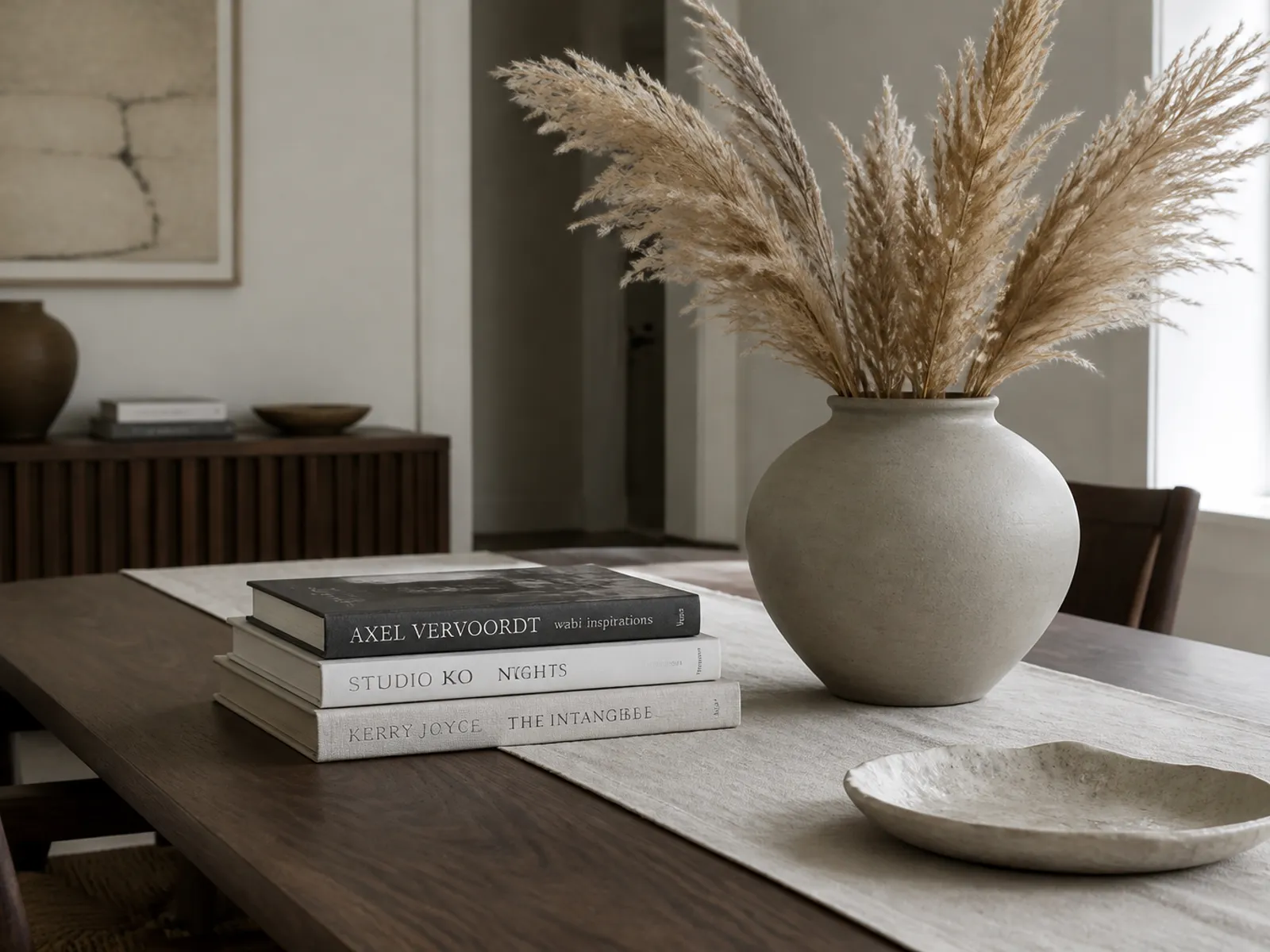
Yes. Use Seedream Image to generate high-fashion editorial portraits. Review lighting, composition, and model styling before finalizing your lookbook or magazine spread.
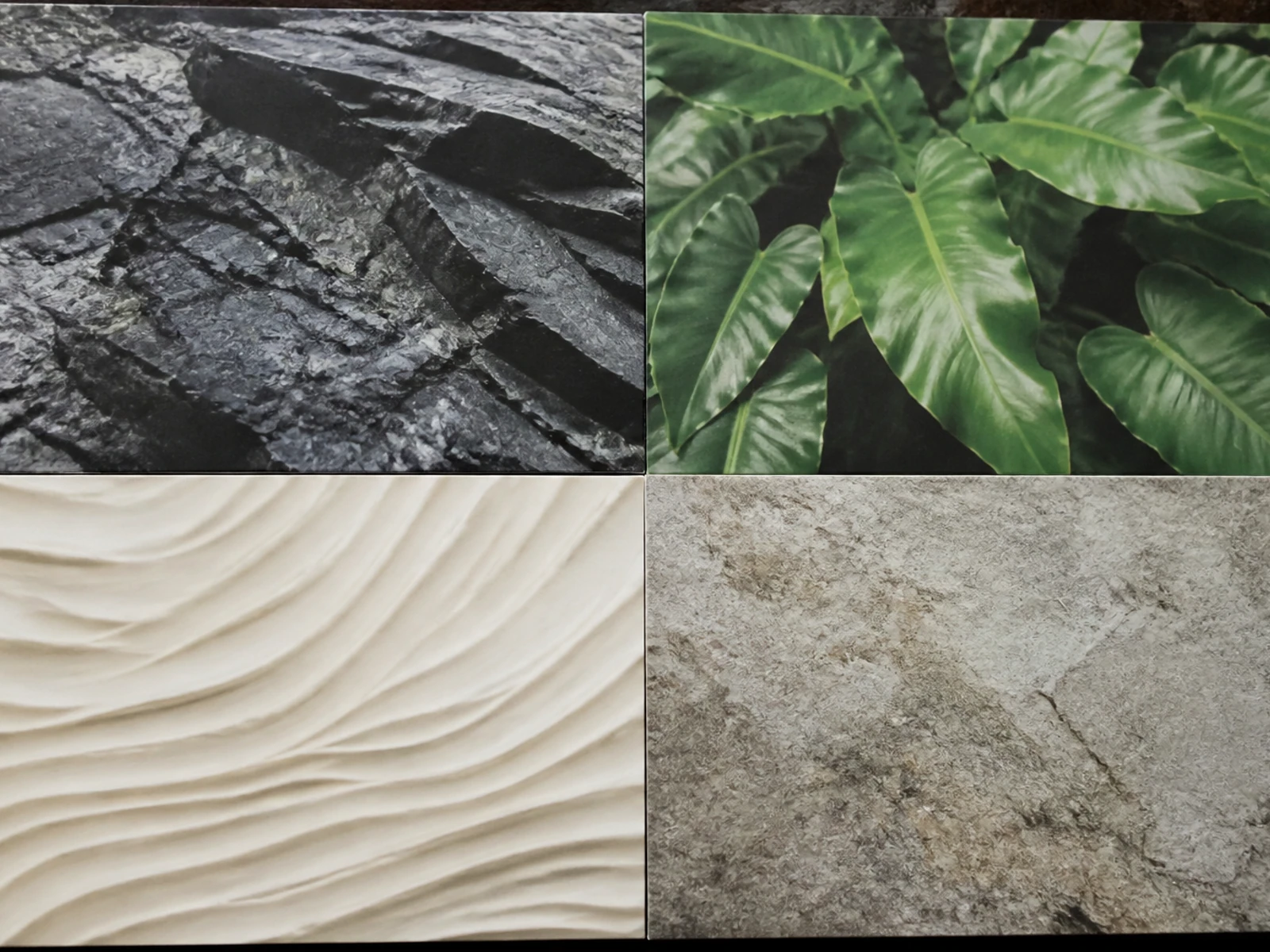
Absolutely. Seedream Image produces storyboard stills and reference images for pre-visualization. Review each frame for narrative consistency and visual tone before production.
Review each revision
Seedream Image offers real 5.0, 4.5, and 4.0 options. Compare outputs side by side to see how each model handles composition, labels, and reference roles for your still image project.
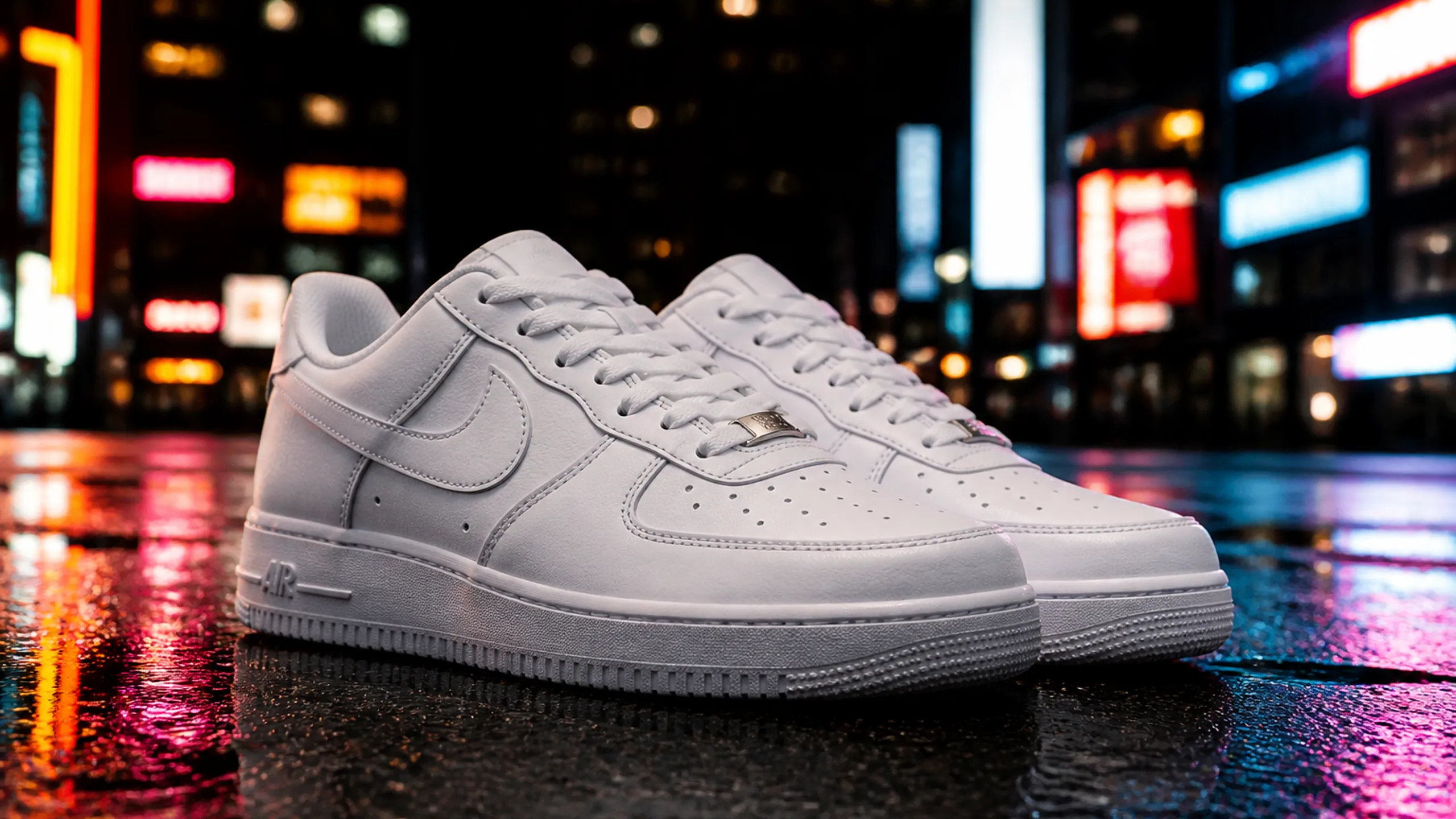
Compare the crop, subject placement, and background with your brief. Keep a useful result as a reference, then describe the next change. Inspect the new output for unintended differences.
Zoom into labels, lettering, seams, and crop edges. Compare them with your brief and any reference image before deciding which details need another attempt.
In your prompt, explain what each reference contributes, such as subject, style, or background. Review the result to see which instructions were followed and which need clarification.
Download a useful result and finish precise typography, cleanup, or layout in an external image editor. Recheck dimensions and fine details before using the final image.
Credits
Read your balance, inspect the displayed cost per image, and check your selected model settings. New purchases are paused.
View your current credit balance on Seedream Image. No free credits are offered.
See the displayed cost for each image based on your selected model settings on Seedream Image.
Check which Seedream Image model (5.0, 4.5, or 4.0) you have selected and its associated cost.
New credit purchases on Seedream Image are currently paused. Use your existing balance.
Find answers about using Seedream Image for still image creation and reference editing with real model options. This section covers practical constraints and independent service details.
Learn how to begin creating images from text prompts or reference images using Seedream Image models.
Understand how to refine your image through controls and iterative adjustments within Seedream Image.
Explore pricing, credit usage, and the independent nature of Seedream Image as a standalone service.
Check your downloaded images for detail changes and understand how Seedream Image handles output fidelity.
Still tools for Seedream Image frames
Seedream Image offers real Seedream 5.0, 4.5, and 4.0 models for still-image creation. Each model has its own capabilities; results vary and are not guaranteed across models.
Use the GPT-4o page to prepare a type-forward still, then bring that file back into the workspace as a first frame or on-screen reference. GPT-4o is a still tool here, not a video model.
Pro for high-finish fashion stills; Nano Banana 2 when clothing and weather have to look photographed. Generate the still there, then use it in the workspace as an identity frame.
Open Seedream 4 to build a fantasy or campaign still, then attach that image as a first or last frame for a camera move through the same world.
Z-Image for window-lit portrait stills; Flux 2 when silhouette and contrast lead the frame. Both are still-prep options before a continuity shot.
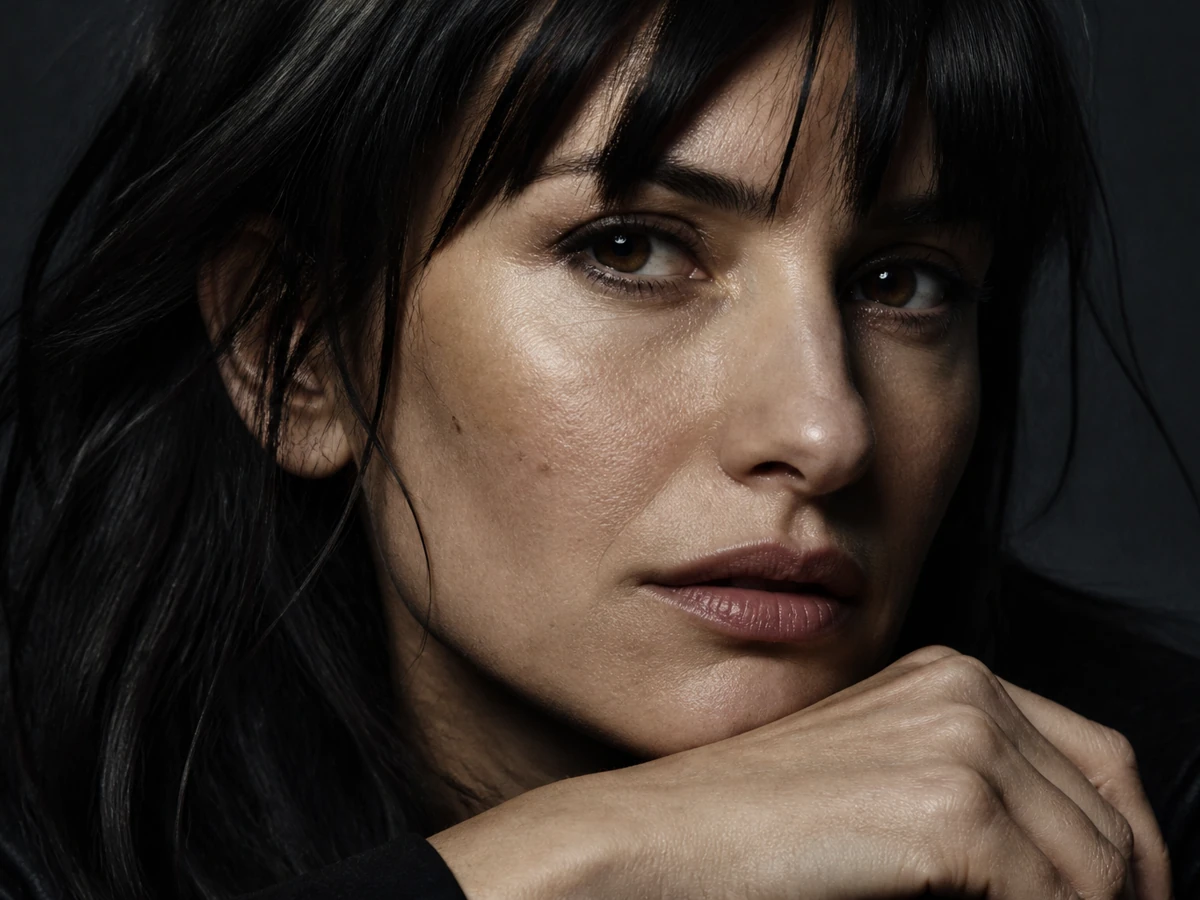
GPT-4o stills for lettering frames
Concept still: photoreal close-up portrait with cinematic side light, useful as a planned identity frame.
Explore Our Curated Set of Associated AI Models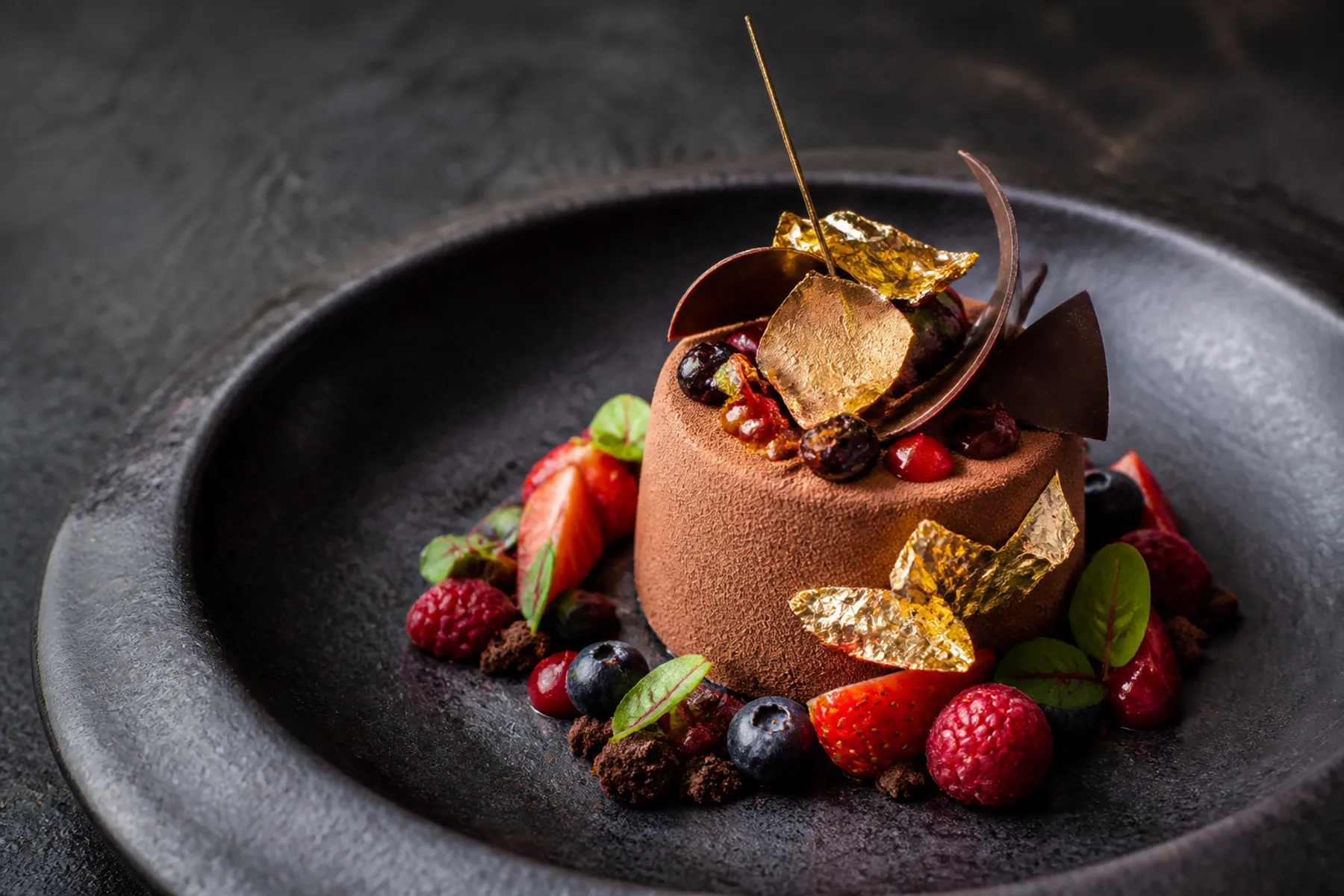
Nano Banana Pro stills for fashion frames
Concept still: gourmet chocolate dessert with berries and gold leaf, useful when you need a high-finish plate as a frame.
Explore Our Curated Set of Associated AI Models
Nano Banana 2 stills for grounded group frames
Concept still: silver concept car in a concrete atrium, useful as a planned opening frame.
Explore Our Curated Set of Associated AI Models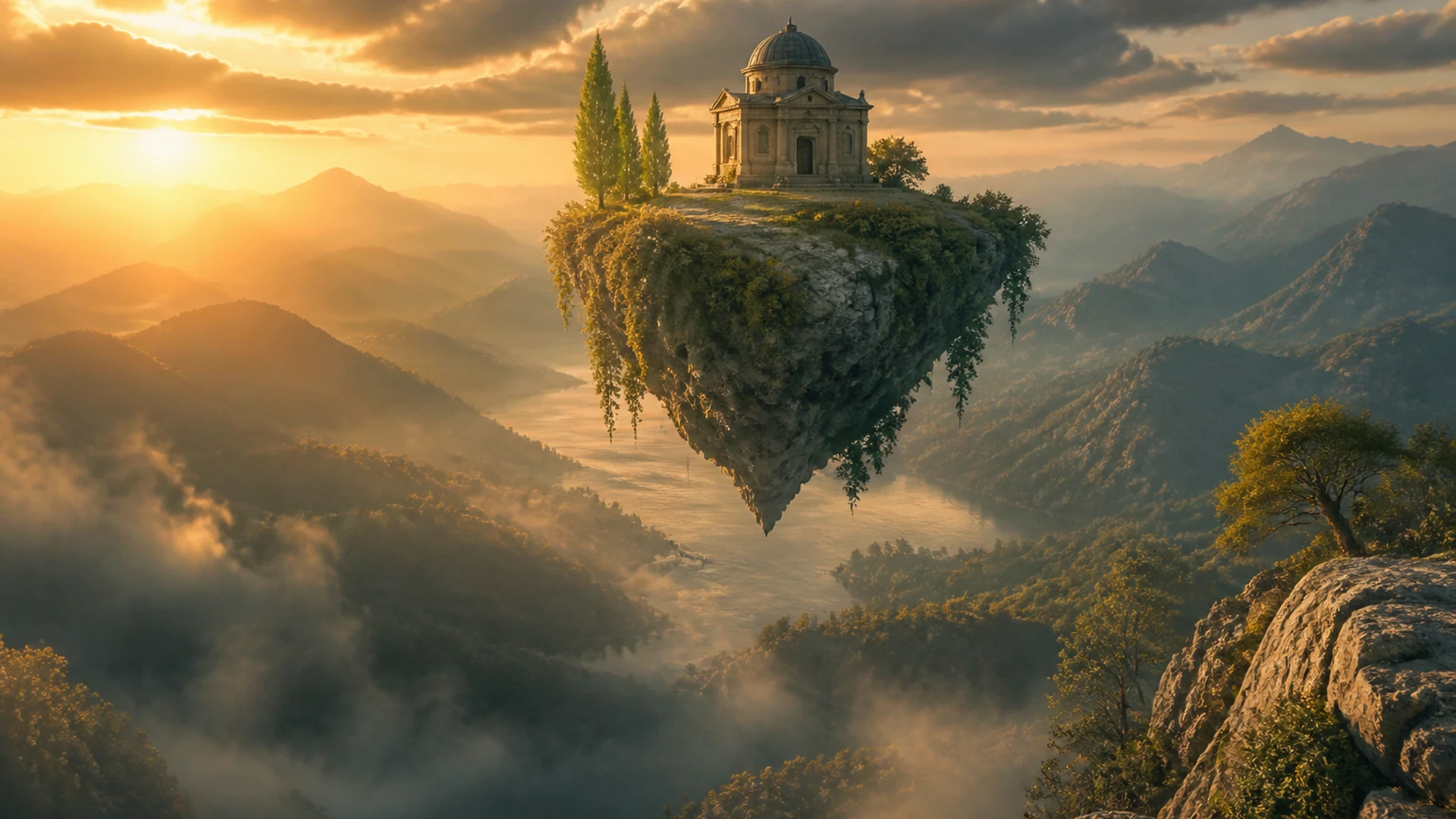
Seedream 4 stills for illustrated world frames
Concept still: floating island temple at golden hour, useful as a campaign-world first frame.
Explore Our Curated Set of Associated AI Models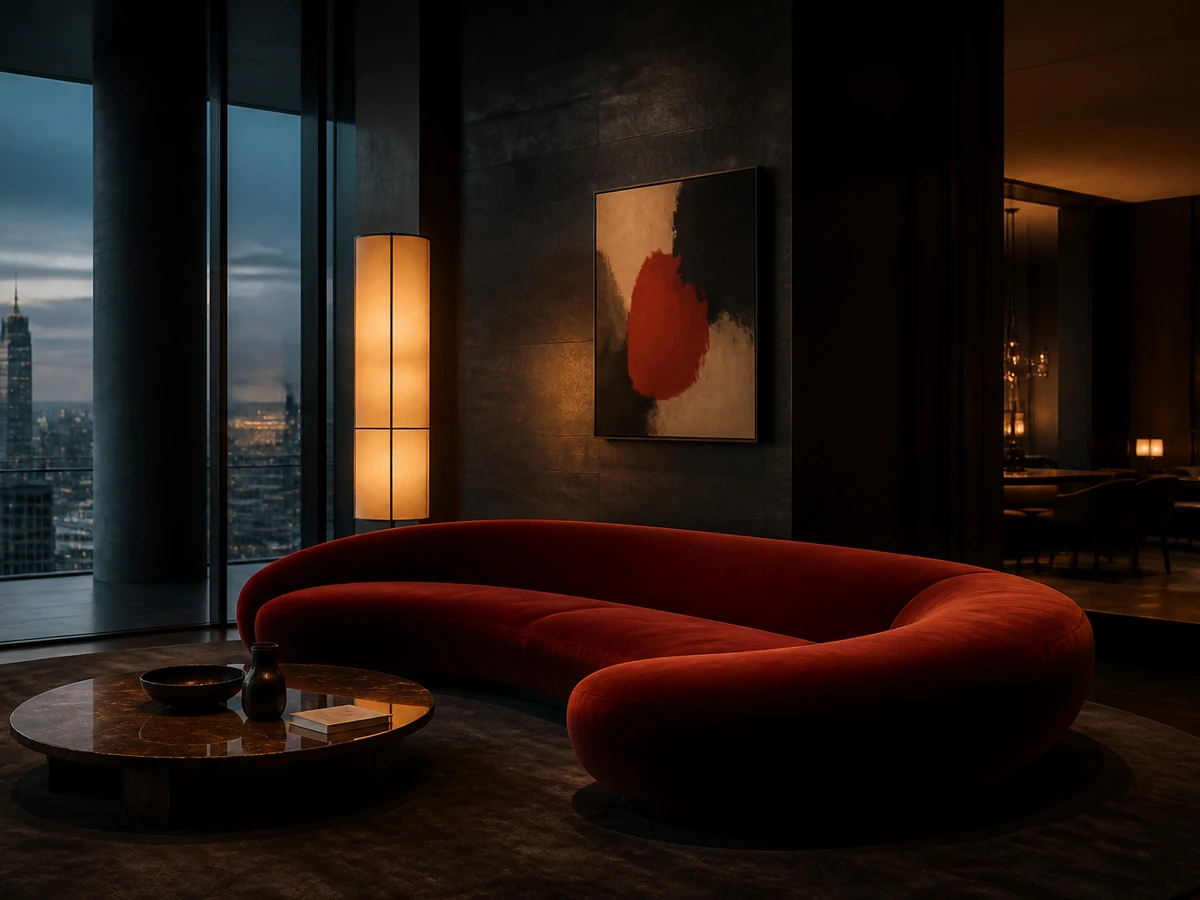
Z-Image stills for natural portrait frames
Concept still: moody penthouse living room with a red velvet sofa, useful as an interior frame.
Explore Our Curated Set of Associated AI Models
Flux 2 stills for graphic fashion frames
Concept still: cinematic fighter jet flying through sunlit clouds, useful as a directional frame, not as a clip.
Explore Our Curated Set of Associated AI Models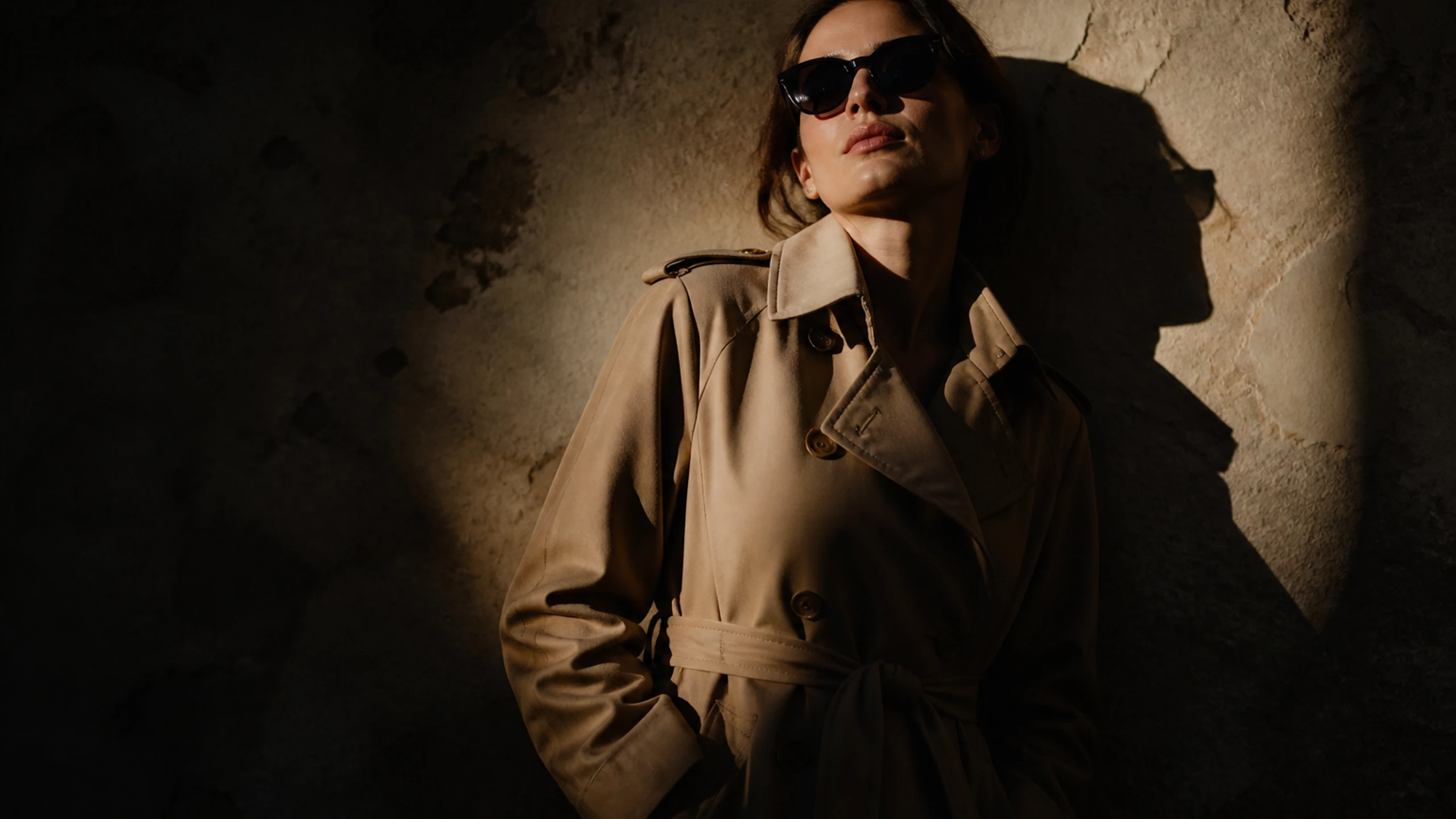
Refine your image: pick one edit, keep a clear reference, choose controls, inspect the full result. No motion or video.
Focus on a single change—crop, color, or text—for clearer results.
Refine your image with one focused edit. Keep your reference clear, adjust controls, and review the full result—no motion or video options here.
Select a single edit, maintain a clean reference, tweak settings, and inspect the complete image. No motion or video features included.
Pick one edit, preserve your reference, choose controls, and view the full image. This is for still images only—no motion or video.


